Quick-start guide
Obtaining Topola
The quickest way to use the Topola PCB router is through the Web application available on Topola’s website.
Alternatively, to install Topola locally on your computer or build it from source, follow our Installation guide.
Exporting Specctra DSN file from PCB design software
Before you can autoroute your PCB design in Topola, you need to export its layout in Specctra DSN (*.dsn) file format, which Topola takes as input. Most, if not all, popular PCB design software packages can export files in this format.
Below are instructions for exporting a Specctra DSN file from KiCad and LibrePCB.
KiCad
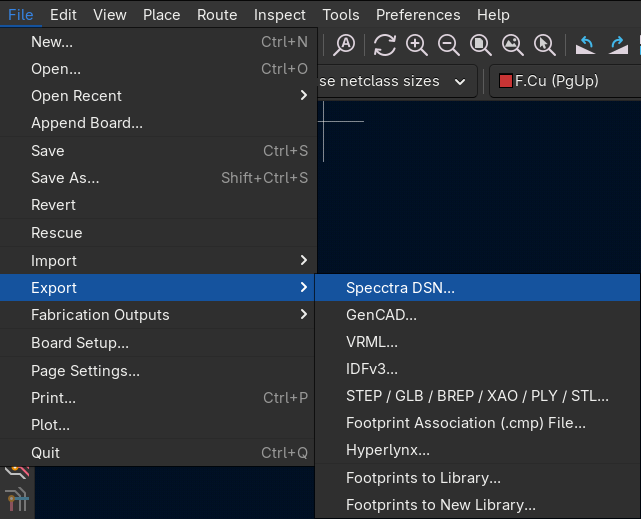
Select File > Export > Specctra DSN from the menu bar to open a file dialog to export a Specctra DSN file.
LibrePCB
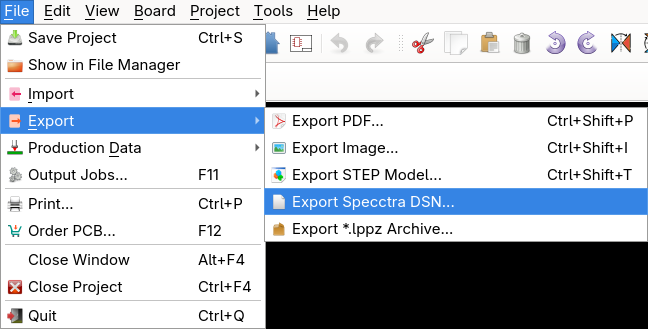
Select File > Export > Export Specctra DSN from the menu bar to open a file dialog to export a Specctra DSN file.
Opening Specctra DSN file in Topola
To import the exported *.dsn file in Topola, select File > Open in the menu bar to open a file dialog and find the file.
Autorouting
You can now autoroute your design in Topola. To do so, just select Route > Autoroute from the menu bar. If nothing is selected, the default behavior is to route all nets.
If you want to autoroute only some parts of the layout, just select the pads you want to route by clicking on them. You can select multiple elements by holding the left mouse button and dragging the cursor. Afterwards, select Route > Autoroute just like above; now only what is selected will be routed.
Exporting results to Specctra SES file
Once you are done with routing, select File > Export Session File to export the new traces to a Specctra SES (*.ses) file, which can be loaded back into PCB design software.
Importing Specctra SES back to PCB design software
Below are instructions for importing a Specctra SES file from KiCad and LibrePCB to load the autorouted traces back, completing the Specctra DSN-SES data roundtrip.
KiCad
Select File > Import > Specctra SES from the menu bar to open a file dialog to import a Specctra SES file.
LibrePCB
Select File > Import > Import Specctra SES from the menu bar to open a file dialog to import a Specctra SES file.